
Quick Start
Build your first AI agent
Create an agent, add trusted knowledge, test its answers, and make it available to customers.
This guide takes you from an empty account to a working agent that answers from your own content.
Before you begin
You need:
- An Orkata account
- A small amount of accurate business information
- A few realistic questions for testing
- A public HTTPS URL if you plan to use a Website source
For the fastest first test, prepare one Q&A entry such as your business hours, delivery estimate, or return window.
First agent checklist
0 of 5 steps complete
- Create an agent
- Add at least one knowledge source
- Test realistic questions in Playground
- Review the model, instructions, and widget
- Open the public link or install the embed code
1. Create an agent
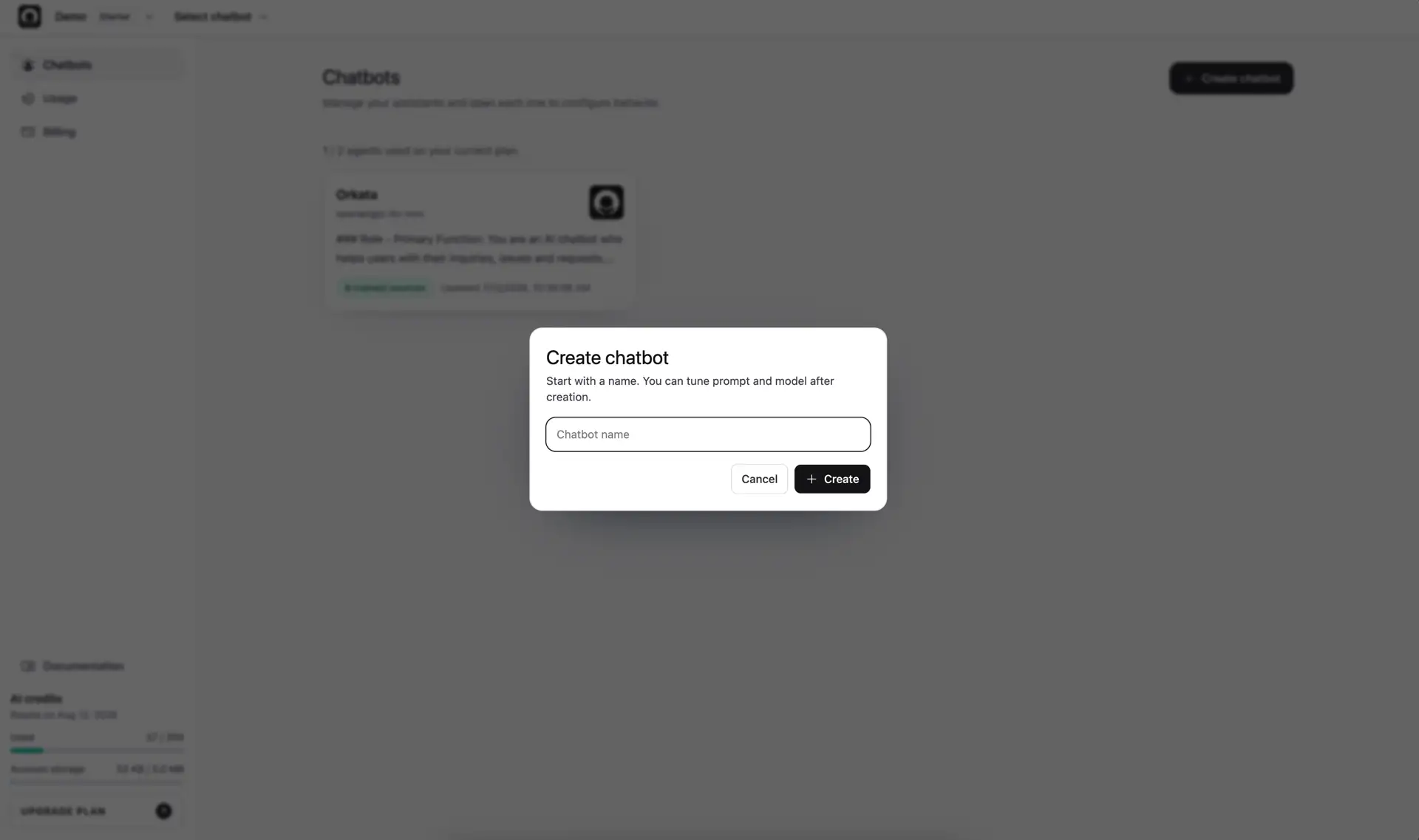
Open the dashboard and select Create agent.
Give it a name that helps your team recognize its purpose, such as Store Support, Product Assistant, or Internal Policy Helper. The name can be changed later.
After creation, Orkata opens the agent’s Knowledge Base.
2. Add the first knowledge source
Choose the source type that best represents the information:
- Files for text-selectable PDF, Markdown (
.md), or text (.txt) documents - Q&A for one approved answer with one or more ways customers may ask the question
- Text for focused policies, product details, or reference notes
- Website for public HTTPS pages serving HTML or Markdown content
Use one source with an answer you already know. Avoid uploading a large collection of documents for the first test.
For PDF files, confirm that you can select or highlight the text. Scanned or image-only PDFs cannot be read reliably.
3. Wait for training to finish
After adding a source, Orkata prepares it for retrieval. Wait until the source status shows Trained.
Here, training means extracting the text, splitting it into searchable sections, and creating the search index used by this agent. It does not mean training a new AI model with the document.
If a source fails, open its actions menu to review the error. Fix the source and add or recrawl it again.
4. Test in Playground
Open Playground and ask a question covered by your source.
Do not test only the exact sentence from the source. If the approved question is “What are your opening hours?”, also try:
- “When are you open?”
- “Are you open on Sunday?”
- “What time do you close?”
Review the response for:
- Accuracy — it matches the approved information
- Relevance — it answers the question that was asked
- Clarity — it is easy for a customer to understand
- Tone — it sounds appropriate for your business
- Boundaries — it does not invent an answer when information is missing
5. Configure the agent
Use the AI tab in Playground to review:
- Model — the AI model used to write responses
- Temperature — lower values are more consistent; higher values are more varied
- Instructions — the role, tone, boundaries, and fallback behavior
- Actions — tasks currently available to the agent
Use the Widget tab to set the welcome message, suggested messages, colors, and other visitor-facing options.
Save your changes and repeat the same test questions. Use Compare Models when you want to evaluate the same prompt across several models before choosing one.
6. Add actions when needed
Actions let the agent do more than return text. For example, it can:
- Show a button that sends the visitor to another page
- Display a form and send the submission to your webhook
- Call an HTTP endpoint to retrieve information from your system
Add actions only after the basic answers work. Test both the message that should trigger an action and similar messages that should not.
7. Share the agent
Open the Share tab in Playground. Orkata provides three options:
- A standalone public chat link
- A JavaScript website widget
- A direct iframe embed
Open the public version and run your test questions one more time. If you install the widget or iframe, verify it on both desktop and mobile layouts.
You are ready to expand
You now have an agent with verified knowledge, tested behavior, and a customer-facing deployment option. Add the next topic only after the first one is working consistently.
Next step
Read Best Practices before adding more sources or sending the agent to a larger audience.