
Agent Management
Knowledge Base
Add, train, review, and maintain the trusted content your agent uses to answer questions.
The Knowledge Base contains the information your agent can search during a conversation. Orkata retrieves relevant sections from trained sources and passes selected context to the AI model to write an answer.
Adding content trains a search index for this agent. It does not train or fine-tune an Orkata-owned AI model with your data.
Choose a source type
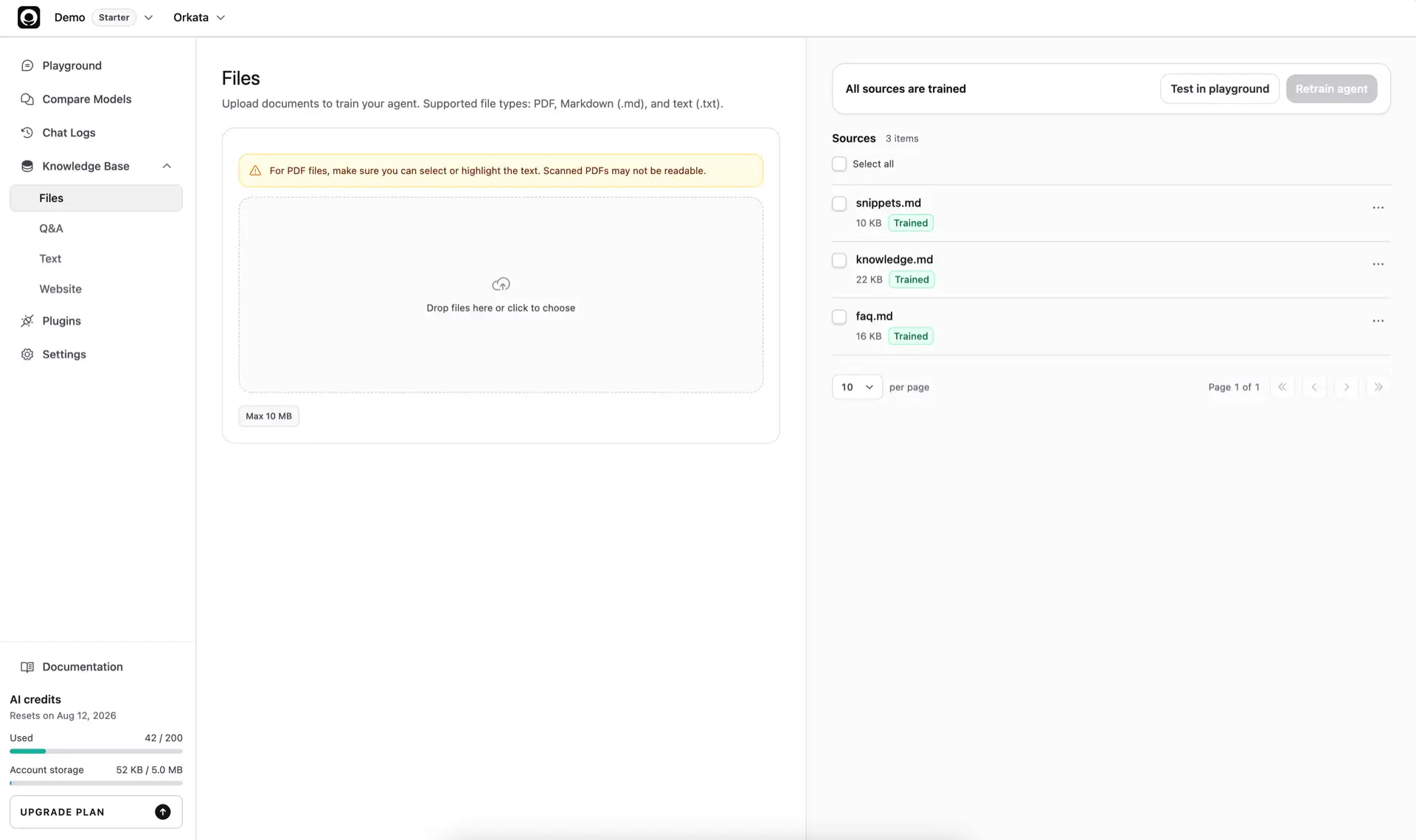
Orkata separates knowledge into four pages:
- Files for
.txt,.md,.markdown, and text-selectable.pdfdocuments - Q&A for approved answers with one or more question variations
- Text for focused policies, notes, and reference content typed in Orkata
- Website for public HTTPS pages serving readable HTML or Markdown
Use the source that is easiest for your team to keep current. A focused source is usually more useful than one large collection of unrelated information.
Understand source status
Each source shows its current state:
- New — added but not trained yet
- Training — Orkata is preparing searchable content
- Trained — available to the agent
- Failed — could not be trained; review the content and retry
The agent needs at least one Trained source before it can answer from your knowledge.
Train and retrain
Select Train or Retrain agent after adding or changing sources. Training extracts or prepares the text, separates it into searchable sections, and updates the agent’s retrieval index.
Retrain after you:
- Upload a file
- Import website pages
- Create or edit Text
- Create or edit Q&A
- Recrawl an existing website source
- Correct a failed source
Small sources often finish quickly. Larger PDFs, website imports, or many changes can take longer. You can leave the page while background training continues.
Work with source lists
Every source page is paginated. Choose 10, 25, or 50 items per page.
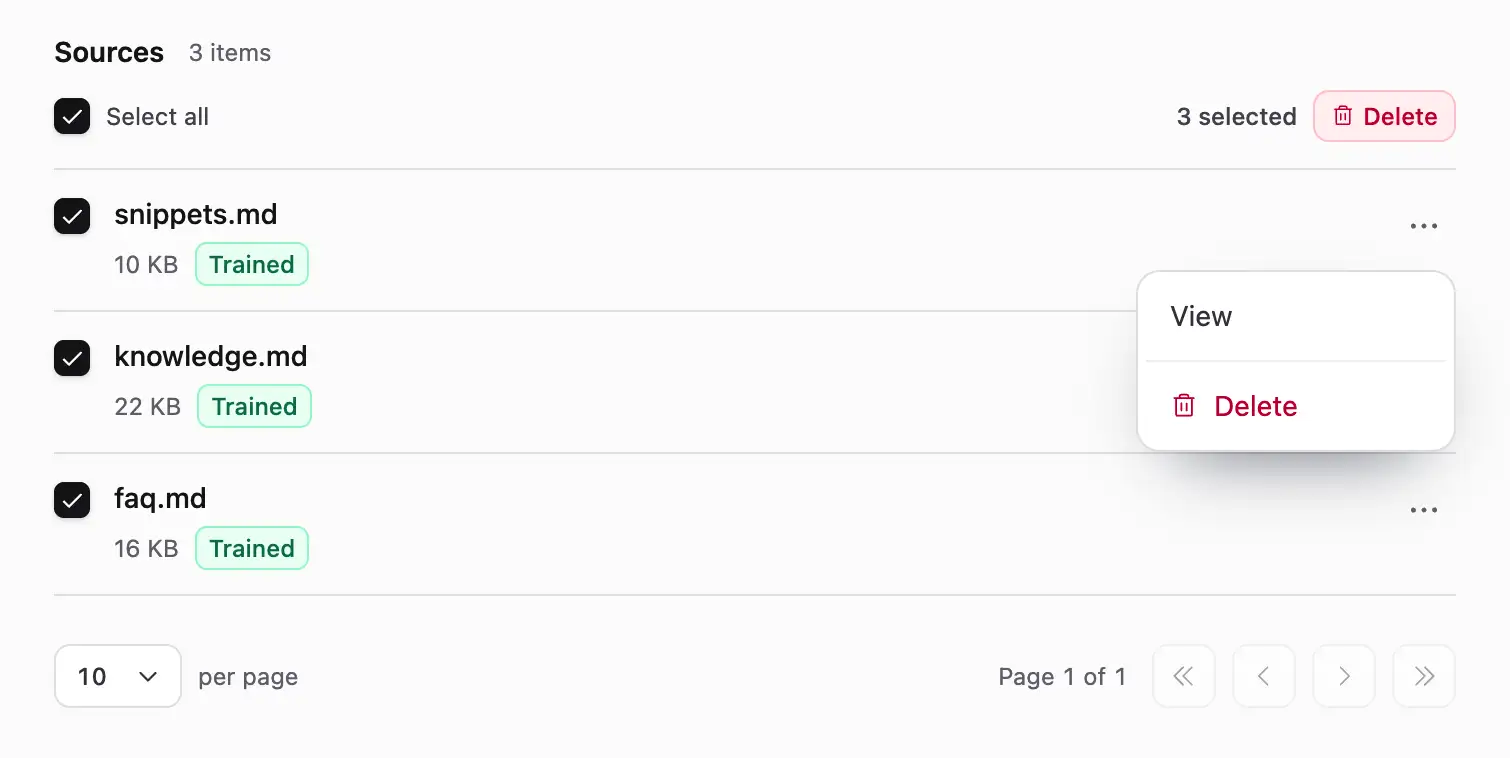
Select a source by clicking its checkbox or its main row details. Select all applies only to the visible page. When sources are selected, the selected count and bulk Delete action appear at the end of the selection row.
Open the three-dot menu on an item for source-specific actions. View and Edit, when supported, open in a drawer so you can keep your place in the list. Website sources also provide Recrawl.
Update knowledge safely
When information changes:
- Find the source that contains the old answer.
- Edit Text or Q&A, replace a File, or Recrawl a Website source.
- Retrain the agent.
- Ask the original question in Playground.
- Inspect Chat Logs and Retrieved Sources if the old answer remains.
Search for duplicate copies of outdated information. One old trained source can continue to compete with the corrected source.
For files, upload and train the replacement before deleting the old version. Uploaded file content cannot be edited directly in Orkata.
Delete sources
Delete from an item’s three-dot menu or select several sources and use the bulk action. Deletion permanently removes the source content and indexed knowledge from this agent.
Past conversation text can remain in Chat Logs until conversation history is deleted from Settings.
Make retrieval easier
- Give each source a descriptive name.
- Keep one topic or closely related set of facts together.
- Use direct headings and repeat the subject instead of relying on “this” or “the above.”
- Prefer an approved Q&A for high-value answers that must be direct and consistent.
- Remove stale and contradictory copies.
- Explain important information shown only in images, charts, or video as text.