
Agent Management
Compare Models
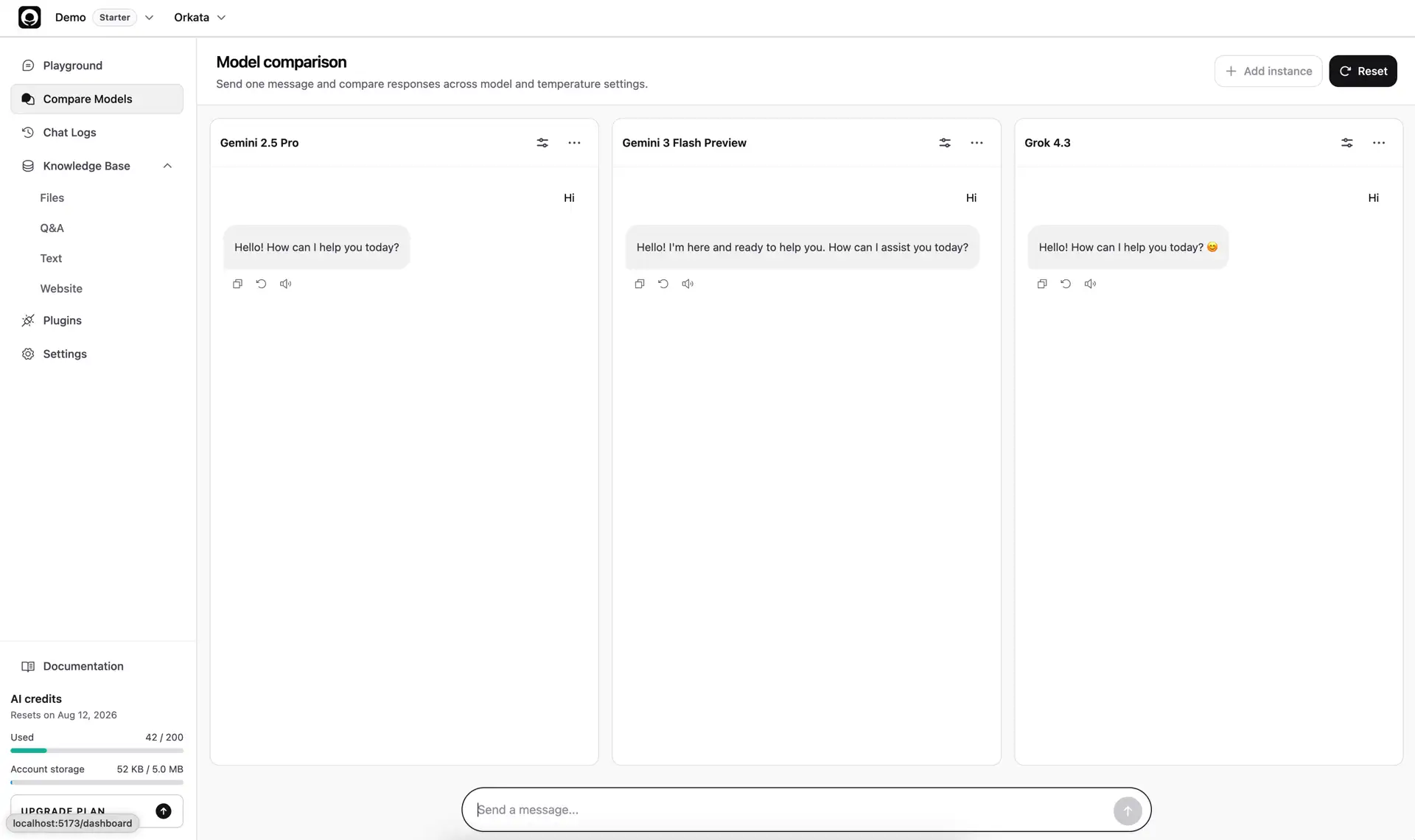
Send the same message to several AI models and compare their answers under consistent conditions.
Use Compare Models when you want to choose a model using your own knowledge, instructions, and customer questions. The page sends one message to every active panel, making differences easier to see than testing each model separately.
Every generated answer uses AI credits according to that model’s credit cost.
Start a comparison
- Open an agent and select Compare Models.
- Start with the three comparison panels, removing any you do not need.
- Choose a model and temperature for each panel.
- Enter one realistic customer question in the shared message box.
- Send the message and wait for every panel to finish.
All panels use the agent’s currently saved instructions. They also search the same trained Knowledge Base, so the comparison focuses on the selected model and temperature.
Compare a file
If visitor attachments are enabled for the agent and every selected panel uses an attachment-capable model, attach up to two files from the shared message box. Each panel receives an isolated copy and processes it with that panel’s selected model, so image comparisons remain independent.
Attachment and response credits are charged separately for every panel. For example, comparing a five-page PDF across three 1C models costs 3 × (5C PDF + 1C response) = 18C.
Configure each panel
Select the model name in a panel to start from the Recommended tab or open All models for the complete provider catalog. Use the search field to find a group, model, or provider. Restricted models appear faded and remain unavailable until the account has access to them.
Open the settings control to change Temperature from 0 to 2:
- Use a lower value for consistent, factual support answers.
- Use a middle value when you want natural wording with moderate variation.
- Use a higher value only when creativity matters more than predictability.
Changing a panel’s model or temperature does not change the agent’s public configuration. Comparison settings are kept in this browser for the current agent so you can continue testing later.
Manage comparison panels
Open a panel’s three-dot menu to move it left, move it right, or remove it. You can compare up to three panels and must keep at least one.
Select Reset to clear the comparison and return to three fresh panels. Reset also clears the comparison settings saved in this browser.
What to evaluate
Do not choose a model from one impressive answer. Use a small test set that covers:
- A common question with a direct answer
- A question whose answer is spread across related source content
- A conversational rewording of the same question
- A follow-up question that depends on the previous turn
- A question the Knowledge Base cannot answer
- A request that should trigger an action
Review each answer for accuracy, use of the available source information, instruction-following, clarity, tone, and whether it admits when information is missing. Consider response speed and credit cost after the answer quality is acceptable.
Apply your choice
Compare Models is a testing workspace. It does not publish the model or temperature selected in a panel.
When you have chosen a setup:
- Open Playground.
- Select the preferred model and temperature in the AI tab.
- Select Save changes.
- Test the public agent once more.
Troubleshooting
A model cannot be selected
Model availability depends on the current plan. Choose an available model or review the account plan under Billing.
The panels give very similar answers
That can be a good sign when the source contains one clear answer. Try more demanding questions, different temperatures, or examples that test boundaries and follow-up context. Do not regenerate solely to force visible differences.
The answers are all incorrect
The issue is probably the shared source content or saved instructions rather than every model. Confirm the answer exists in a Trained source, remove contradictions, and retest in Playground before comparing again.
Next step
Open Chat Logs to see how the chosen agent performs in real conversations.