
Agent Management
Chat Logs
Review customer conversations, response details, and the knowledge snippets retrieved for an answer.
Chat Logs records conversations for the selected agent. Use it to understand what visitors ask, inspect agent answers, and identify source or instruction changes that will improve future responses.
Orkata uses conversation data to provide the service and show these logs. It does not use customer knowledge or chat logs to train Orkata-owned AI models.
Choose a conversation
The session list shows the channel and visitor, latest activity, a message preview, and message count. Select a session to open the complete transcript. Select Show more when older sessions are available, or Refresh to load recent activity.
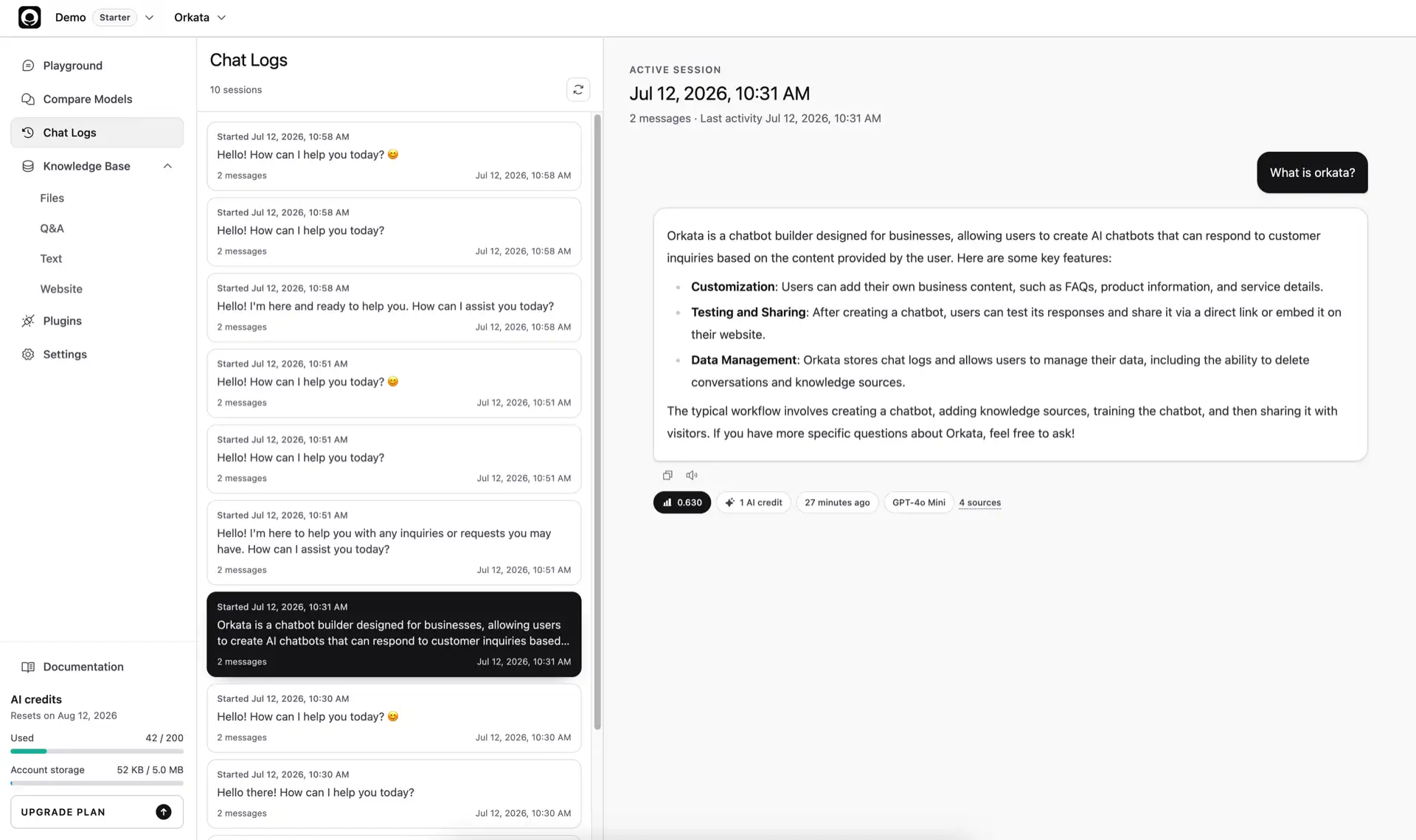
The conversation header shows the session date. Messages appear in the order the visitor and agent sent them. Files appear above the visitor message that included them. Image thumbnails remain available while the uploaded binary is retained; the file name, type, and size remain visible with the stored message afterward.
The details panel shows identified visitor fields as key-value rows. Verified means the host server supplied a valid signed identity token. Unverified means the profile came from the legacy browser identity API or predates verification tracking; use it for context, not authentication or authorization. Additional profile metadata appears in its own section, with longer sets collapsed until you select Show more.
Filter conversations
Select the filter icon above the session list to narrow the logs by:
- Date range, based on when each session started
- Conversation activity, to separate engaged conversations with two or more customer messages from single-question sessions
- Confidence score, which includes a session when at least one completed assistant response is below the selected threshold
- Feedback, to find conversations containing positive or negative visitor ratings
Choose a low confidence threshold to find conversations that may need knowledge or instruction improvements. The active-filter badge shows how many filter groups are applied. Select Clear to return to all sessions.
Export conversations
Open the three-dot menu above the session list and choose:
- Export JSON for structured conversations with visitor identity and verification status, messages, confidence details, feedback, retrieved-source references, and action UI parts
- Export CSV for one spreadsheet row per message, including visitor identity and verification status, session dates, roles, content, confidence, feedback, and source names
Exports include every conversation matching the active filters, not only the sessions currently visible in the sidebar. An export is limited to 5,000 conversations; narrow the date range or lower the confidence threshold when a larger export is rejected.
Conversation exports can contain personal or sensitive information entered by visitors. Store exported files securely and share them only with authorized people.
Read response details
Conversation turns can show compact details below them:
- Confidence summarizes how strongly retrieval matched the visitor’s question.
- Credits appears below the visitor turn and shows its total AI credit cost, including the response and any attachment processing.
- Time shows when the response was created; hover for the exact timestamp.
- Model identifies the model that generated the response.
- Sources shows how many stored knowledge snippets were used.
These details help diagnose an answer, but they are not a substitute for checking the source itself. A confident response can still be wrong when the source is outdated or contradictory.
Inspect retrieved sources
Select the source count on a response to open Retrieved Sources. The dialog shows the source name and the exact stored snippet retrieved for that answer. It may also show the chunk position within the source.
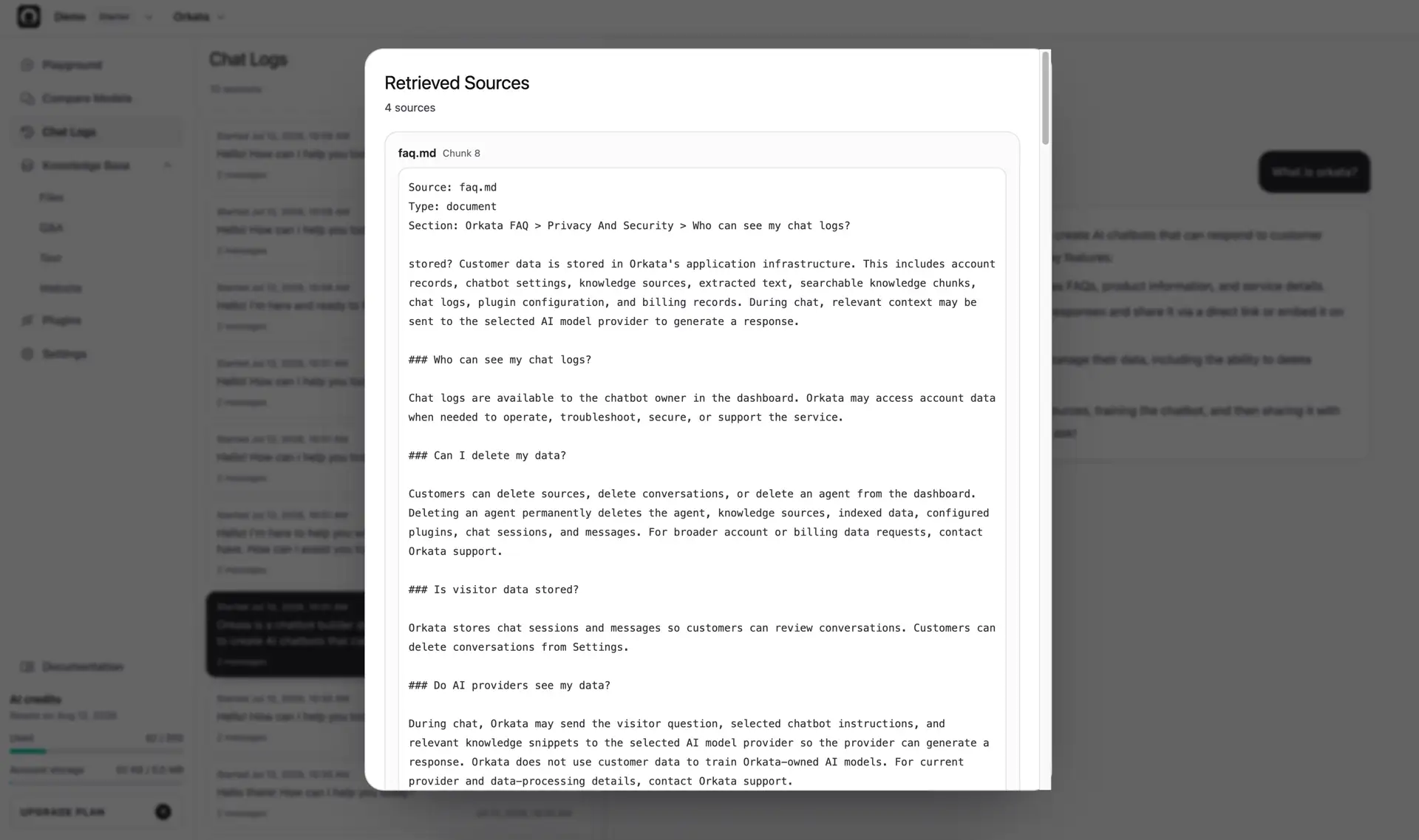
Use the evidence to decide what to fix:
- If the correct snippet was retrieved but the answer is unclear, revise the agent instructions or compare another model.
- If the wrong snippet was retrieved, improve source headings, separate unrelated topics, or add a focused Text or Q&A source.
- If no useful source was retrieved, confirm the information exists in a Trained source and is stated directly.
- If several sources disagree, update or delete the outdated copies and retrain.
Turn logs into improvements
Review a small sample regularly and group issues by cause:
- Missing knowledge — add the approved answer to Q&A or Text.
- Outdated knowledge — edit, replace, or recrawl the source.
- Unclear behavior — revise instructions in Playground.
- Wrong action trigger — make the action’s When to Use description more specific.
- Account-specific request — provide a clear path to a person instead of inventing an answer.
After changing anything, ask the original message again in Playground and confirm the result.
Delete conversation history
Chat Logs does not delete individual sessions. To remove all conversations for this agent:
- Open Settings.
- Select Delete all conversations in the Danger Zone.
- Review the confirmation and continue.
This removes chat sessions and messages but keeps the agent, actions, settings, and Knowledge Base. The deletion cannot be undone.
Troubleshooting
A recent conversation is missing
Select Refresh. Confirm that you are viewing the same agent that handled the conversation.
Retrieved Sources is empty
Older or failed responses may not have stored retrieval evidence. For a new test, confirm that the agent has a trained source and send the question again.
The visitor message contains sensitive information
Avoid asking visitors for information you do not need. Use a Form action with carefully chosen fields when structured collection is required, and configure your receiving system appropriately. Delete all conversations from Settings when the whole agent history must be removed.
Next step
Learn how to organize and maintain the content behind these answers in Knowledge Base.