
Knowledge Base
Files
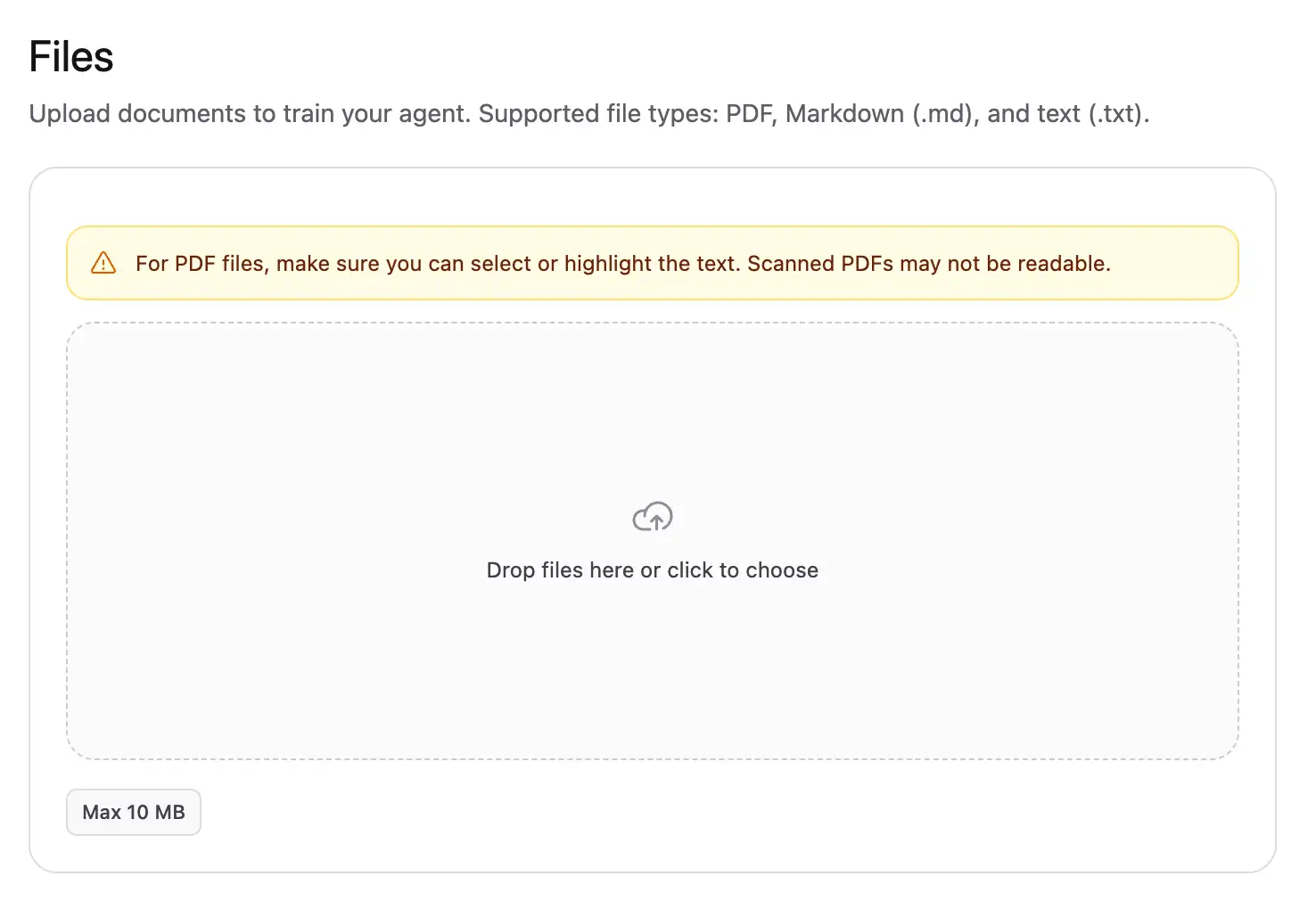
Upload readable PDF, Markdown, and text documents for your agent to search.
Use Files when your business information already exists in a document. Orkata extracts the document text and prepares it for retrieval.
Supported files
You can upload:
- Text:
.txt - Markdown:
.mdand.markdown - PDF:
.pdf
The maximum size is 10 MB per file. Word, Excel, CSV, and image files are not supported as direct uploads.
If you are uploading a PDF, make sure you can select or highlight its text. Scanned or image-only PDFs do not contain readable text unless they have been processed with OCR.
Upload a file
- Open Knowledge Base → Files.
- Drag files into the upload area or select the area to browse your device.
- Review any validation message.
- Select Retrain agent after the files appear in the source list.
- Wait until each source shows Trained.
Prepare useful documents
A document works best when it has:
- Descriptive headings
- Short sections about one subject
- Direct statements instead of references such as “the option above”
- Text explanations for important images, charts, and diagrams
- Current information without conflicting old versions
Remove repeated headers, footers, legal boilerplate, or navigation text when they overwhelm the useful content.
Replace an existing file
Uploaded file content cannot be edited inside Orkata. To publish a new version:
- Upload the replacement file with a clear name.
- Retrain and wait for Trained.
- Test important questions in Playground.
- Delete the old file after confirming the replacement works.
Keeping both versions can cause the agent to retrieve outdated information.
Manage uploaded files
The title shows the number of file sources. Use the checkbox or click a source’s details to select it. Select all selects the items on the current page only. When at least one item is selected, use Delete to remove the selection.
Open an item’s three-dot menu to view available details or delete that file. Choose 10, 25, or 50 items per page and use pagination for the rest.
Troubleshooting
The upload is rejected
Confirm that the file is not empty, uses a supported extension and matching content type, is no larger than 10 MB, and fits within the account’s remaining knowledge storage.
A PDF has no readable text
Try selecting a sentence in a PDF viewer. If it behaves like one large image, run OCR with a trusted document tool and review the extracted text before uploading again.
The agent cannot find a fact in a large document
State the fact directly under a descriptive heading. For a critical answer, add a focused Q&A or Text source instead of depending on a small sentence buried in a long PDF.
An old answer still appears
Check whether the old file or another trained source contains the outdated text. Delete or update the duplicate, retrain, and test again.
Next step
Use Q&A when one approved answer should match several ways a customer may ask the same question.