
Knowledge Base
Q&A
Create approved answers and match them to the different ways customers ask a question.
Use Q&A for important questions that need a direct, maintained answer. One answer group can include several question variations, helping Orkata recognize different customer wording without duplicating the answer.
Create a Q&A source
- Open Knowledge Base → Q&A.
- Select the action to add a Q&A source.
- Enter a descriptive name or source label.
- Add an answer group.
- Enter the main question and useful alternative questions.
- Write one approved answer.
- Add more answer groups when they belong to the same source.
- Save, then retrain the agent.
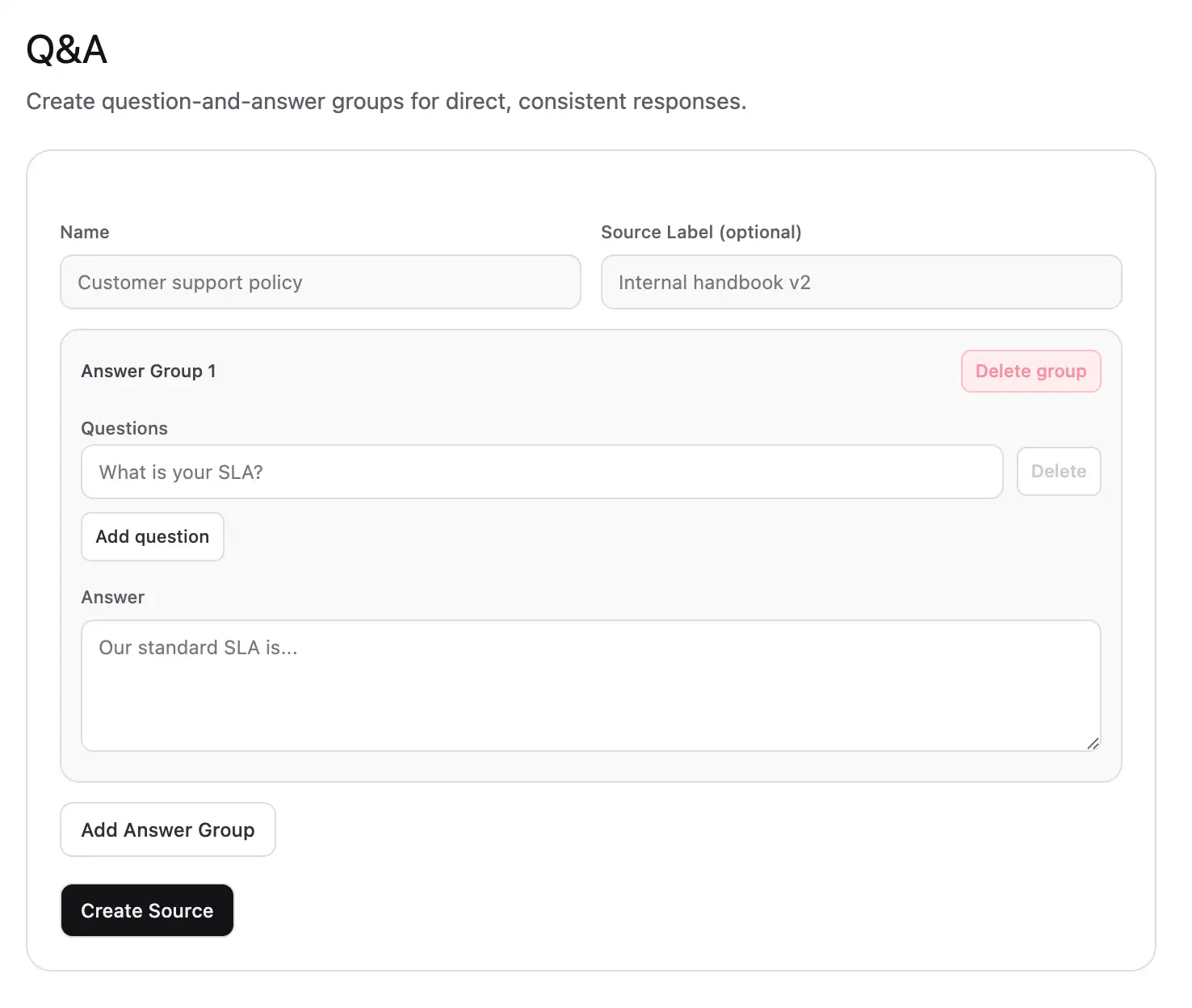
A source supports up to 120 answer groups. Each question can contain up to 600 characters, each answer up to 4,000 characters, and one group can include up to 20 question variations.
Write useful question variations
Add variations that represent genuinely different wording, not every minor punctuation change.
For example:
Question: What are your business hours?
Variation: When are you open?
Variation: What time do you close?

Answer: We are open Monday to Friday from 09:00 to 18:00 WIB.
Include important context such as product, location, or service name when the same question could have different answers.
Write an approved answer
- Begin with the direct answer.
- Include important conditions and exceptions.
- Use the full approved URL when the customer should visit a page.
- Avoid promises your business cannot consistently keep.
- State when a person must handle account-specific or sensitive requests.
Keep facts in the answer rather than in the question variations. This makes future updates safer because there is one answer to edit.
Edit a Q&A source
Open the source’s three-dot menu and select Edit. The editor opens in a drawer. Update the relevant group, save it, and retrain.
After a real conversation exposes a missing or unclear answer, add the corrected, approved content here and ask the original message again in Playground.
Manage Q&A sources
Click a source’s details or checkbox to select it. Use Select all for the current page and Delete when selected sources should be permanently removed. Open the three-dot menu to view, edit, or delete one source.
The list supports 10, 25, or 50 sources per page.
Troubleshooting
The agent still misses a variation
Add the visitor’s meaningful wording as another question in the same answer group. Also confirm that the source is Trained.
Two answers conflict
Combine them only if one approved answer can correctly cover both cases. Otherwise make the questions more specific and remove outdated duplicates from other sources.
The response includes an incorrect link
Put the complete approved URL in the answer. The model should not be expected to construct a URL from a page title.
The answer changes too much
Q&A improves retrieval but the model still writes the response. Use direct instructions and a low temperature in Playground, then compare models with the same question.
Next step
Use Text for a focused policy or reference note that does not naturally fit a question-and-answer format.